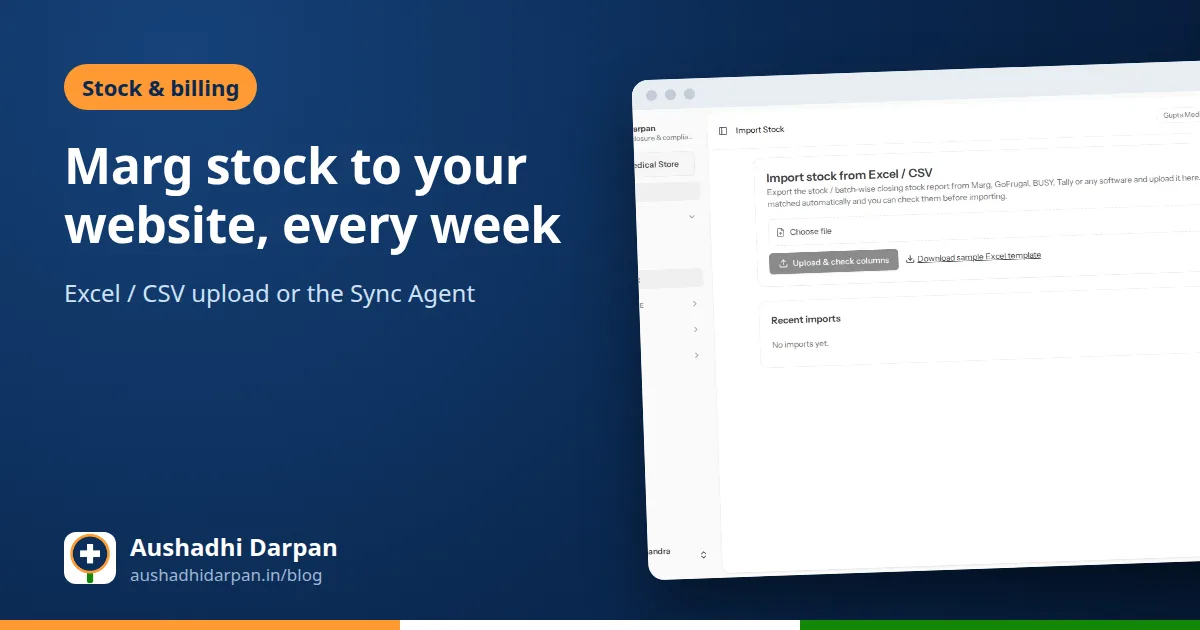
The FSDA order asks a medical store to show its stock on its website and update it every week. If you bill in Marg ERP, you do not need to type the stock again: export the closing stock once a week and upload the file, or let the Aushadhi Darpan Sync Agent do it for you. The same works for GoFrugal, RetailGraph and most other software.
What the file needs
One row per batch, with these columns (the names can be anything; you match them once):
| Needed | Column |
|---|---|
| Yes | Item / medicine name |
| Yes | Batch number |
| Yes | Expiry |
| Yes | MRP |
| Yes | Closing stock (quantity) |
| Recommended | Sale rate / selling price |
| Optional | Pack, salt (generic name), manufacturer |
Send your whole stock in one file every time. A batch that is not in the file is treated as sold out.
Step 1 — Export the stock from Marg
Menu names can differ a little between Marg versions; look for the batch-wise stock report.
- Open Marg and go to Reports → Stock → Batch-wise Stock (or Stock Status).
- Choose All Items, with batch, expiry, MRP, rate and closing stock.
- Export as Excel (.xlsx) or CSV. Keep the file name as Marg gives it.
GoFrugal: Reports → Inventory → Stock Report (batch-wise). RetailGraph: Reports → Stock → Batch-wise Stock. No software? Download our Excel template from Import Stock and fill it.
Step 2 — Upload it
- Log in and open Stock → Import Stock.
- Press Choose file, pick the export and press Upload & check columns. Files up to 10 MB (.xlsx, .csv, .txt).
- Columns are matched by their names. If one is not found (for example a quantity column called "Bal"), choose it once from the list; it is remembered for the next files.
- Tick "This file is my complete current stock" and press Start import. Total rows and empty rows are skipped; rows with a problem are listed so you can correct them.
Step 3 — Publish for the week
Open FSDA Compliance → Weekly Publish, check the counts and press Publish now. Your website shows the stock with the date. Expired batches are never published. The page turns red when a week has passed without an update.
Or let it happen by itself: the Sync Agent
The Sync Agent is a small Windows program for the computer that runs Marg.
- Open Administration → Plugins (store owner only) and choose Marg ERP.
- Accept the "one file" note and press Create connector key; install the Sync Agent and enter the key.
- Choose the days and time, and the folder where you save the export (for example
D:\StockExport). - On your sync day, export the stock into that folder. The agent sends the newest file, your stock is published by itself, and the file is moved to a Backup folder.
The download is switched on for your store by Aushadhi Darpan support.
How batches are matched
A row updates an existing line when the medicine, batch number and expiry month are the same. A new batch number or a new expiry becomes a new line, and the old one goes to zero.
Frequently asked questions
My export has two header rows / a total row. Is that a problem? No. Two-line headers are joined and total rows are skipped.
Can I upload every day? Yes. The order asks for at least once a week; more often is fine.
Where are the other steps (licence, pharmacist, QR)? In the store owner's guide, and in What the FSDA order asks a medical store's website to show.